Project Summary
In this section of the user guide, we will explain the features available on the Project Overview screen within the Outage Management Tool. This screen provides comprehensive information about a project, including site details, project progress, location, and team member roles.
Accessing the Project Overview
To view the overview of a project:
- Select the desired project from the list within the 'Projects' section.
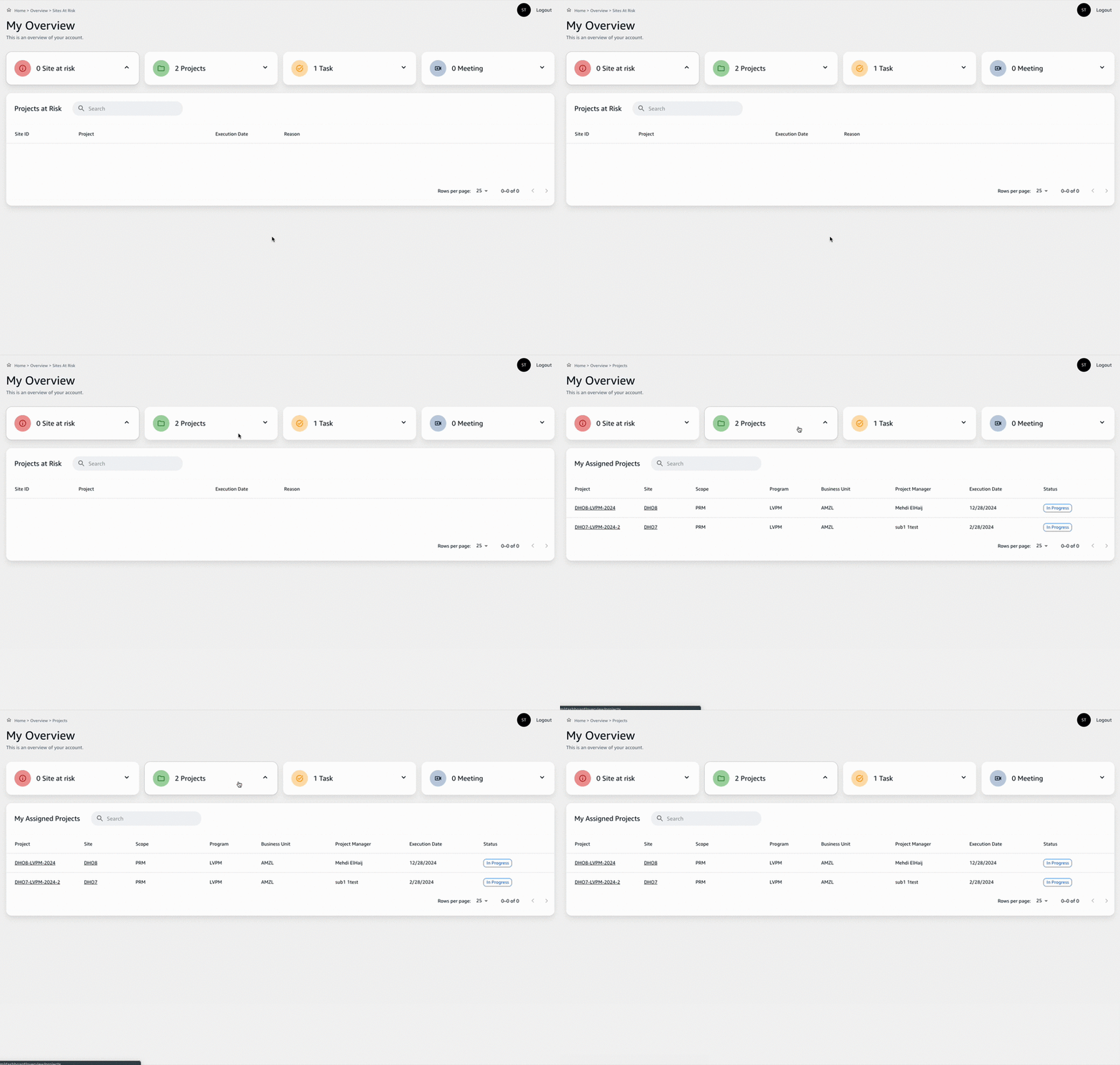
- Click on the project to open its detailed view.
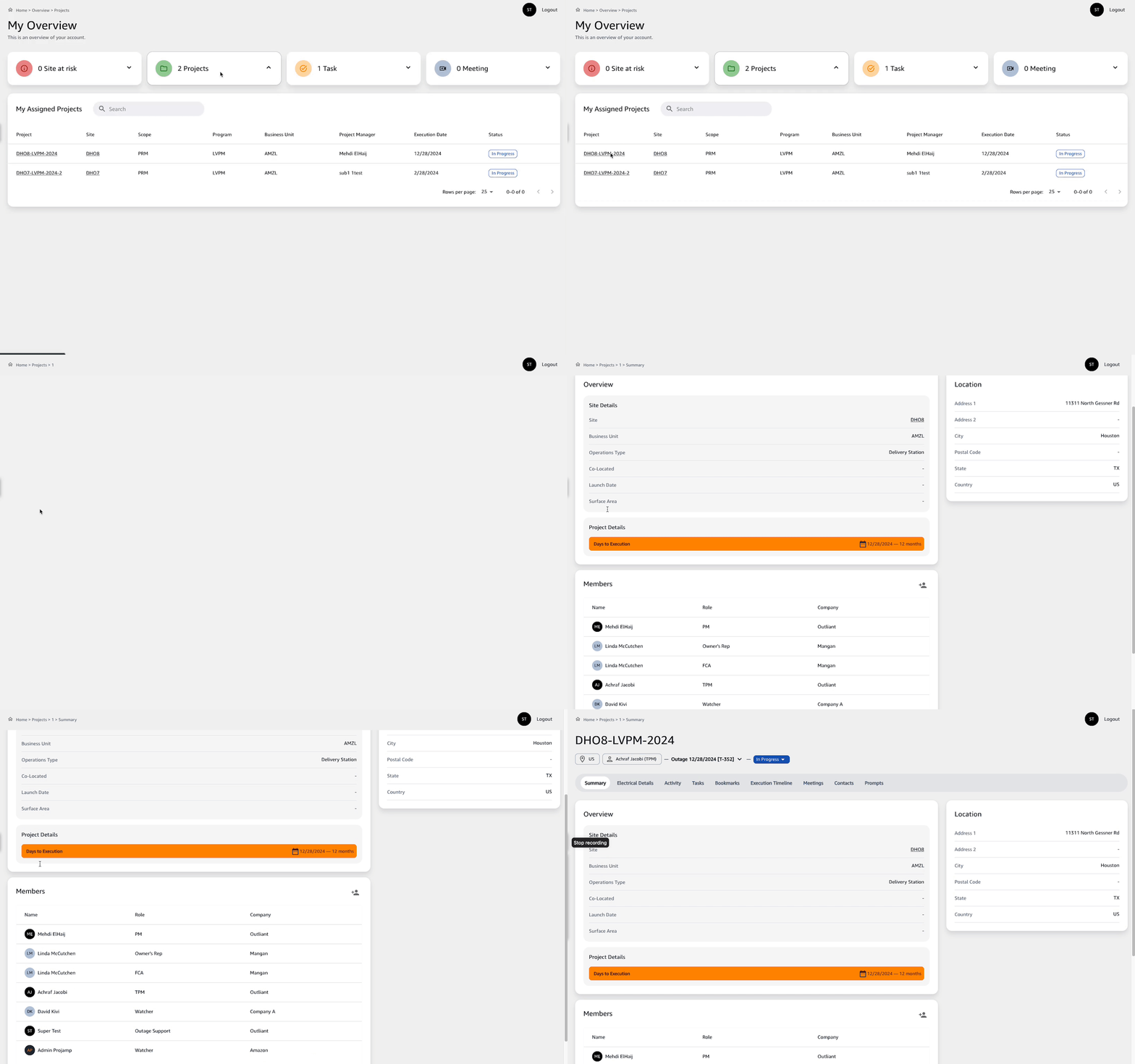
Overview Screen Features
The Overview screen is organized into different sections for easy navigation:
Site Details
- Site: Clickable specific physical location identifier for an Amazon facility.
- Business Unit: Indicates the business unit or division associated with the project.
- Operations Type: Describes the type of operations being managed at the site.
- Co-Located: Information about whether there are other power services or operations at the same location.
- Launch Date: The date when the project commenced.
- Surface Area: The physical size of the project site or operation area.
Project Progress
- Days to Execution: A visual progress bar that indicates the remaining time until the project's planned execution date. It may also display the start date and the total duration leading up to execution.
Location Information
- Provides the physical address and other location details of the project site, including the street address, city, state, postal code, and country.
Team Members
- A list of team members involved in the project, along with their roles and associated company information. This section helps in identifying the key contacts and their responsibilities within the project.
By familiarizing yourself with the Project Overview screen, you can effectively track the project's progress and access essential details required for management and coordination tasks.