Task Detail View
Accessing Task Details
- To view more information or modify a task, click on the task name from the Task List Template.
- This will open the Task Detail View, which provides additional options to manage the selected task.
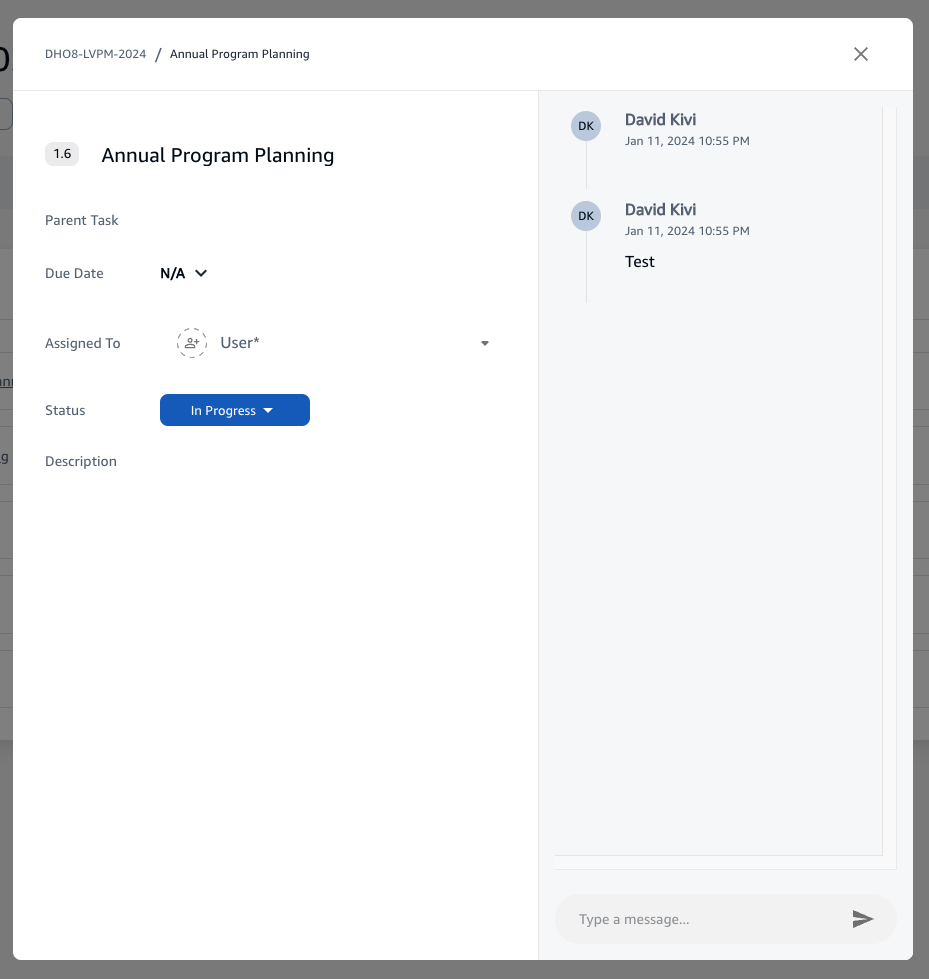
Managing Task Details
Within the Task Detail View, you can:
- Change Status: Update the status of the task to reflect its current progress.
- Modify Due Date: Adjust the due date if there have been changes in the project timeline.
- Add Comments: Leave comments for communication and collaboration with your team. Comments are timestamped and display the commenter's name for easy tracking.
- Parent Task: For subtasks, this field indicates the main task to which it is related.
Task Interaction
- Comment Section: At the bottom of the Task Detail View, there is a section where you can type and send messages to other team members regarding the task.
- History and Notifications: On the right side, there is a panel that logs all activity related to the task, including status updates and newly added comments.
By utilizing the Task Management section, you can ensure that all tasks are progressing as planned and that any potential issues are promptly addressed. This centralized system enhances project efficiency and fosters a collaborative environment among project stakeholders.
Understanding Task Nesting in the Project Dashboard
Our Project Dashboard has been designed with a streamlined approach to task management. To enhance ease of use and minimize complexity, tasks are organized in a single-level nested structure. This section explains how task nesting works within the Project Dashboard and the rationale behind this design choice.